Editing Features
Let’s get to know how to edit features in the platform. The procedure of editing features is the same for both the drawing layer and vector layer.
Polygon Tool
Ensure that you first locate the polygon that you want to edit and then proceed to edit it as per the following instructions. The procedure of editing is the same for both the drawing layer and vector layer.
To edit a polygon, do the following:
-
Open a Workspace, click the Edit icon on the Analyst Tools, and then click the Select tool.
-
Select the polygon that you want to edit.
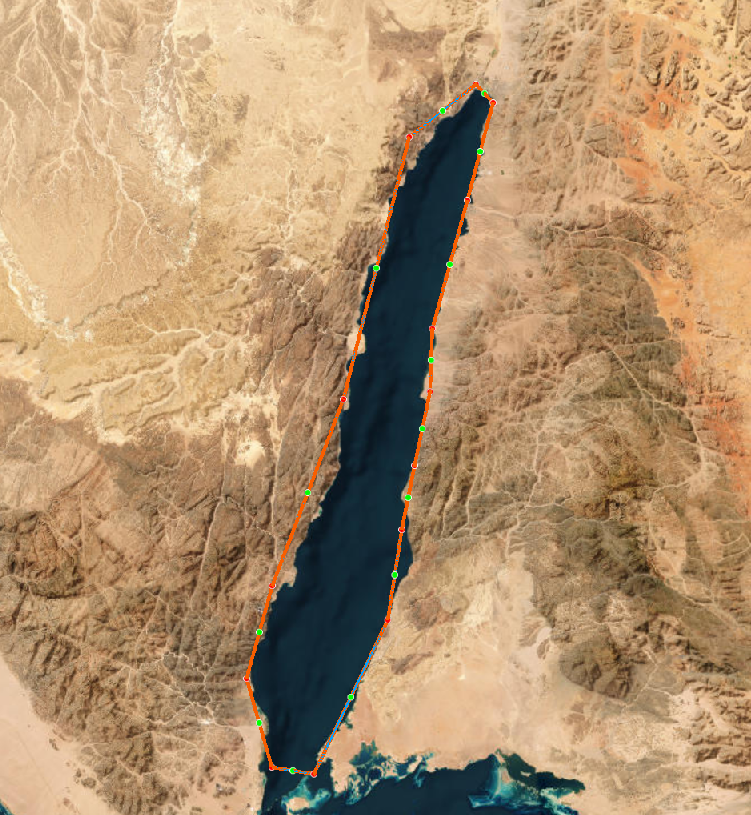
All the vertices of the polygon are displayed.
-
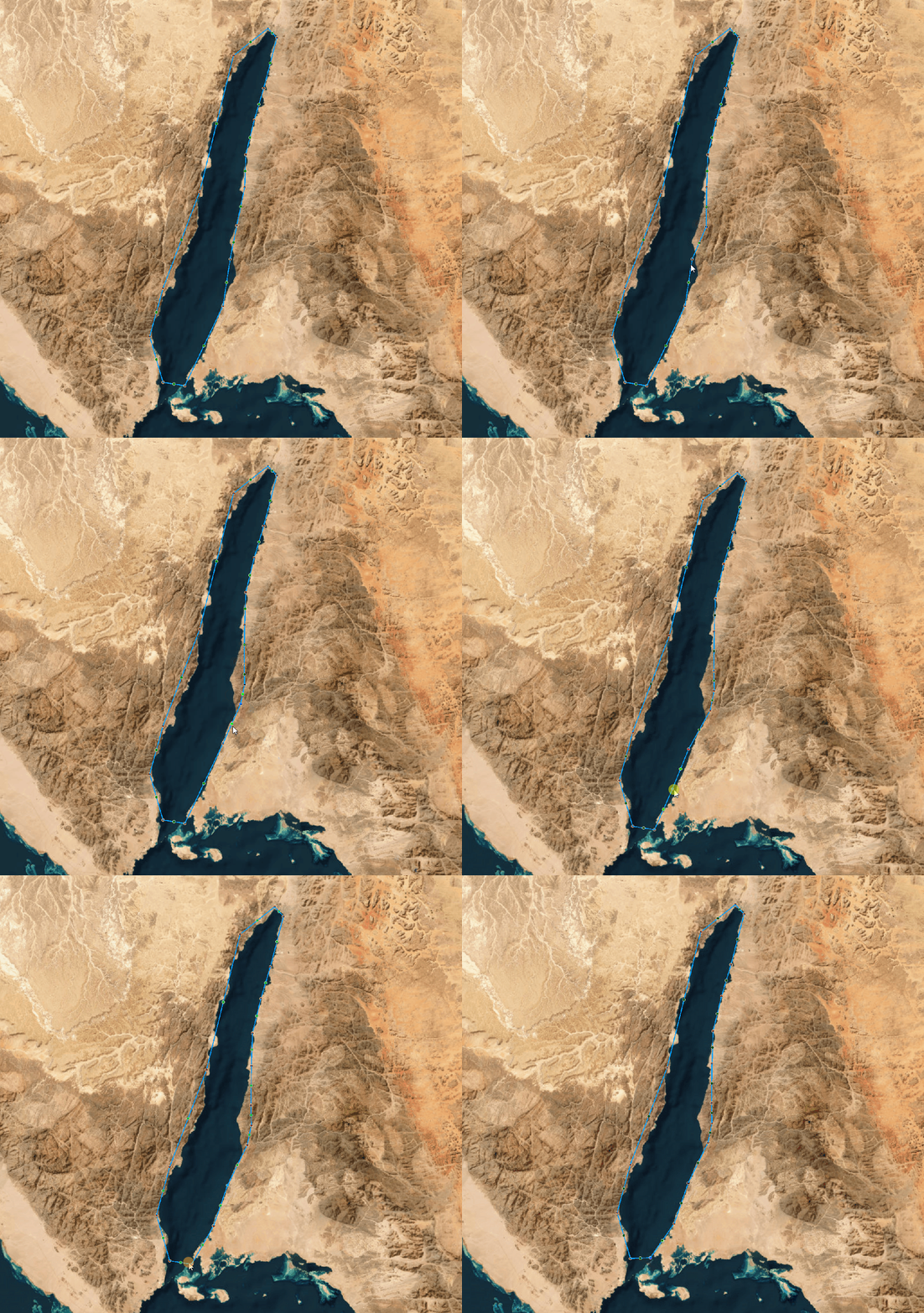
Click and drag any of the green or red vertices of the polygon to change its position. Continue to move the vertices until you achieve the desired shape.
-
Click the Edit icon again to exit the edit mode.
Line Tool
Ensure that you first locate the line that you want to edit and then proceed to edit it as per the following instructions. The procedure of editing is the same for both the drawing layer and vector layer.
To edit a line, do the following:
-
Open a Workspace, click the Edit icon on the Analyst Tools, and then click the Select tool.
-
Select the line that you want to edit.
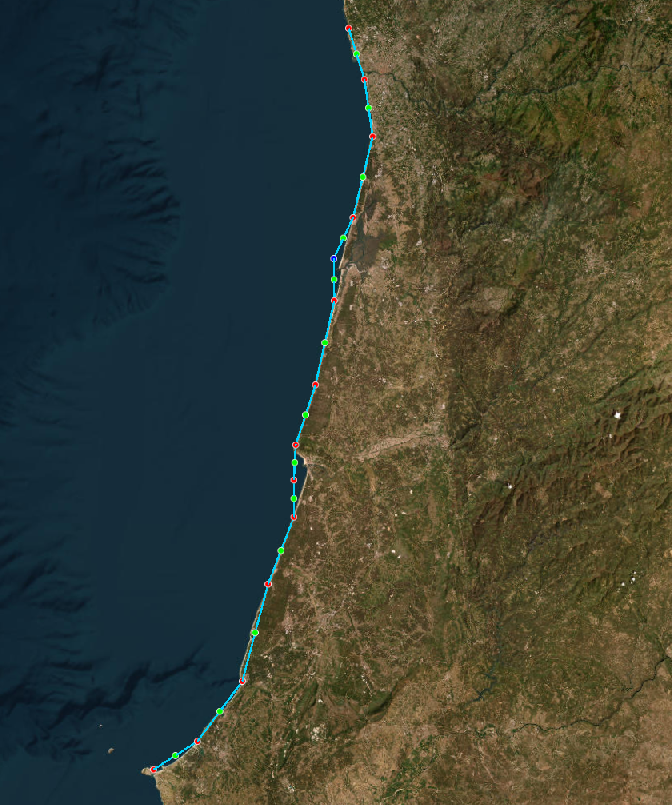
All the vertices of the line are displayed.
-
Click and drag any of the green or red vertices of the line to change its position. Continue to move the vertices until you achieve the desired shape.

-
Click the Edit icon again to exit the edit mode.
Point Tool
Ensure that you first locate the polygon that you want to edit and then proceed to edit it as per the following instructions. The procedure of editing is the same for both the drawing layer and vector layer.
To edit a polygon, do the following:
-
Open a Workspace, click the Edit icon on the Analyst Tools, and then click the Select tool.
-
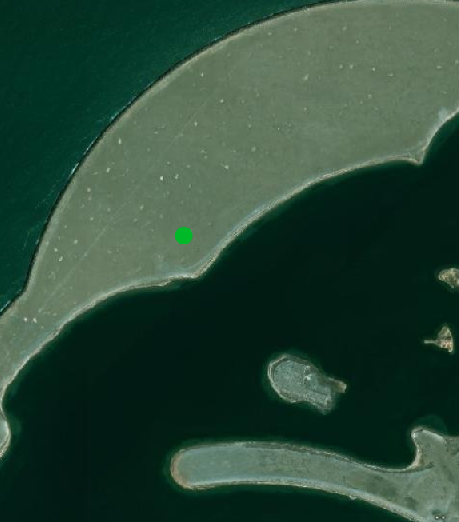
Select the point that you want to edit – move from one place to the next.
-
Click and drag any the point to change its position. Continue to move the positions of other points on the map.

-
Click the Edit icon again to exit the edit mode.
Text Tool
Ensure that you first locate the text that you want to edit and then proceed change the location of the text it as per the following instructions. To change the text itself, see XXX.
The text tool is available only in the drawing layer.
To edit a text, do the following:
-
Open a Workspace, click the Edit icon on the Analyst Tools, and then click the Select tool.
-
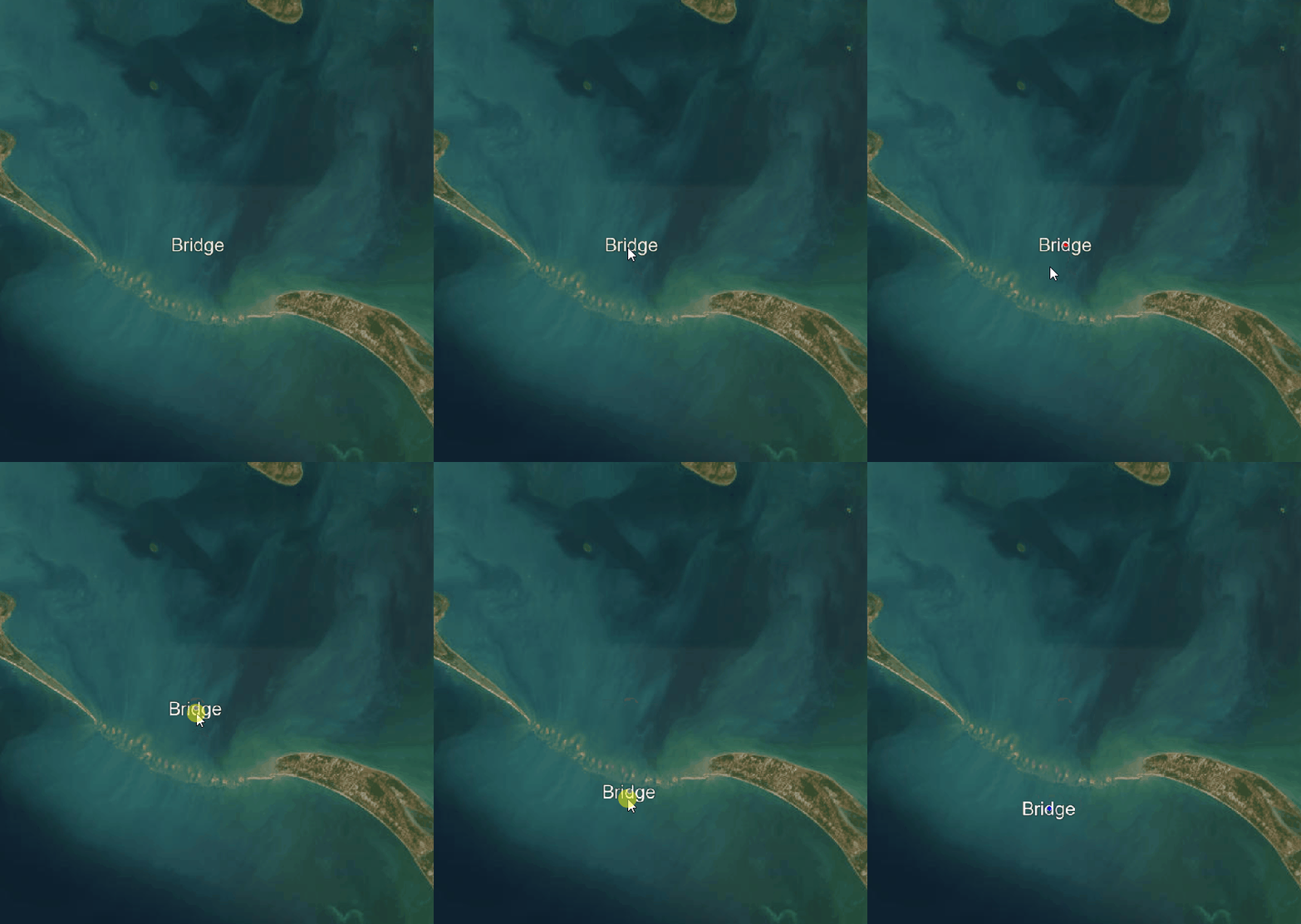
Select the text that you want to edit.

-
Click and drag the text to change its position. Continue to move other text tools to change their positions on the map.
-
Click the Edit icon again to exit the edit mode.